Manage Bria Enterprise softphone licences in MyCloudVoIP
Bria Enterprise softphones on your Simtex Cloud PBX
Give every person a business-grade softphone on Windows, Mac, iPhone and Android. Order seats and manage logins yourself in MyCloudVoIP.
The 60-second version
- Order a pool (once per business). In MyCloudVoIP, open Softphones, click New pool, choose how many seats you want at each licence level and set your login domain.
- Turn on Bria for each person. Pick their subscription, a licence level and a username, then copy the password. It's shown once.
- The user installs Bria Enterprise and signs in with
username@your-domainand that password.
Lost password? Use Reset password. Someone leaving? Use Turn off and the seat goes back to the pool.
How it fits together
Choose your licence levels
| Licence level | Best for | Key features |
|---|---|---|
| Bria Basic Free | Included with PhoneEssentials, PhonePlus and PhoneMax plans | Bria Basic at no extra cost on eligible Cloud PBX plans |
| Bria Basic | Calls on desktop and mobile | HD voice and video, chat and chat rooms, up to 4 devices per user, push notifications on mobile |
| Bria Standard | Teams who message as well as call | Everything in Basic, plus hosted presence and messaging synced across devices, and file transfer |
| Bria Business | Teams who meet and share screens | Everything in Standard, plus screen sharing and video conferencing |
Create your licence pool
You only do this once. In MyCloudVoIP, open Navigation > General > Softphones.
- You do this
Click New pool, then choose your seats and login domain
Enter how many seats you want at each licence level, and your login domain (usually the part of your staff email addresses after the @). Then click Place order.

- We handle this
We set up the pool
The card shows progress: Requested, Setting up the pool, Billing set up, Ready. It usually takes under a minute.
- You do this
Your pool is ready
The card shows each licence level and how many seats are used. Use Change seats to add or remove seats later.

Turn on Bria for a user
Each subscription (extension) in Softphones has a Turn on button.
- You do this
Click Turn on, then pick a licence level and username
Choose a licence level that has a free seat and type a username. The portal adds your login domain to the end. Then click Turn on.

- We handle this
We create the Bria login
Progress shows Requested, Checking seats, Creating login, Billing updated, Ready. This usually takes a few seconds.
- You do this
Show and copy the password
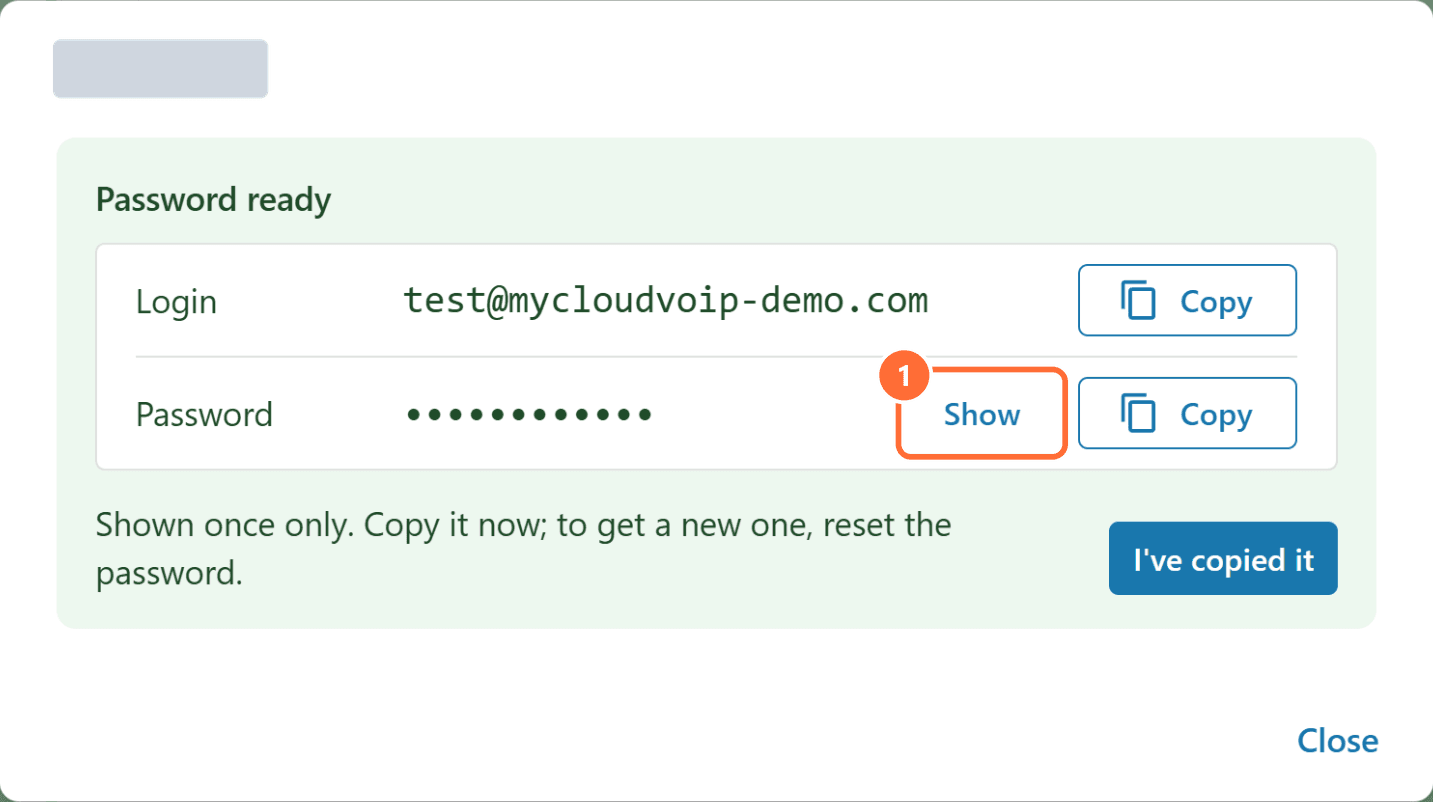
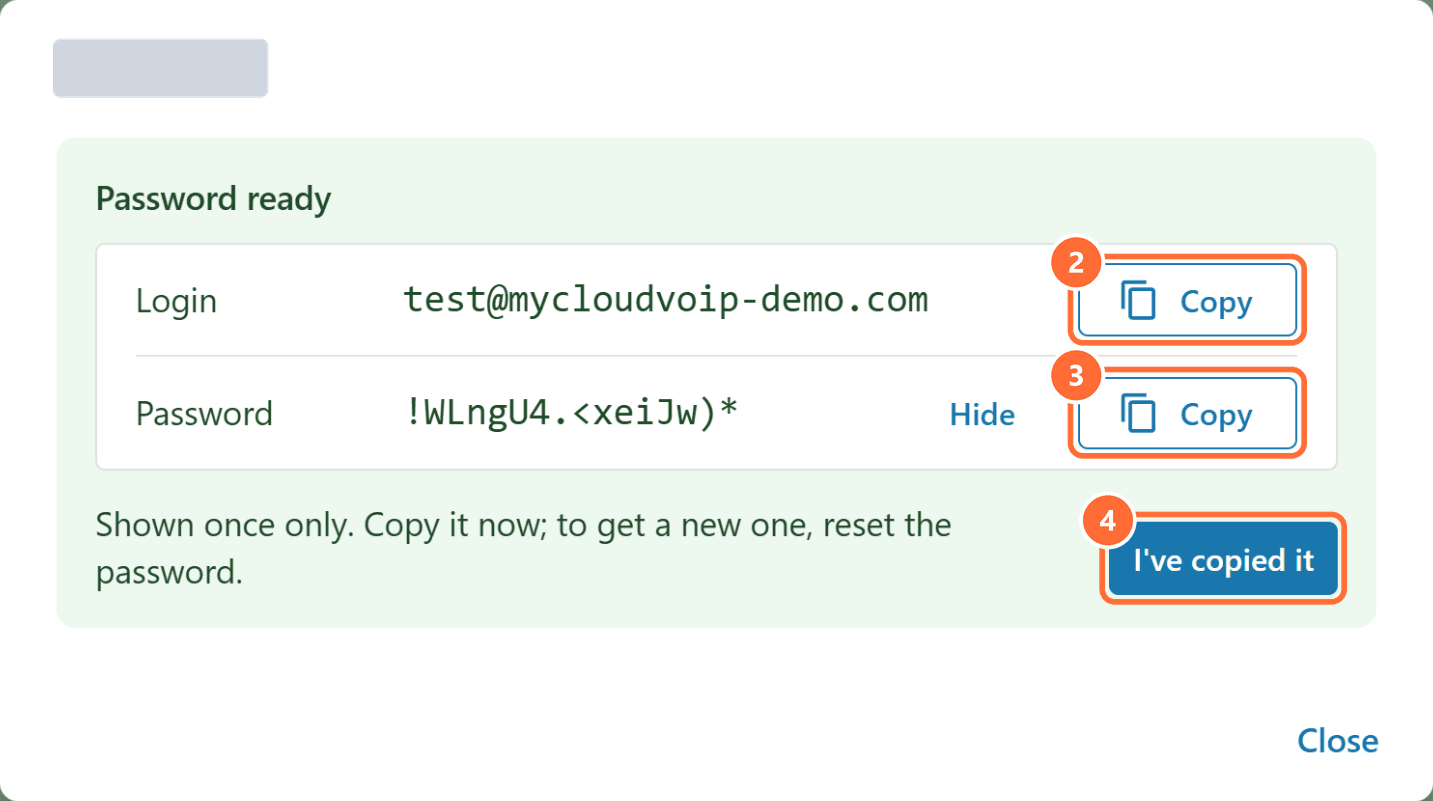
When it's ready, a Password ready box opens with the user's login and password. Click Show to see the password, copy the login and the password, and send them to the user securely. Click I've copied it when you're done. Once you close the box, the password can't be shown again.
Manage a user's Bria login
Once Bria is on, the user's row in Softphones shows their licence level, username and these actions:

- Show password: only appears while a new password is waiting to be collected.
- Turn off: removes the login and returns the seat to the pool.
- Reset password: issues a new password and signs the user out everywhere.
Change username renames the login. The login domain part can't change.

Reset a password
Click Reset password on the user's row, then confirm.
- The old password stops working straight away, and Bria signs out on every device.
- The new password is shown once, the same way as when you turned Bria on.
- This can't be undone or cancelled once it starts.

Turn Bria off
Click Turn off on the user's row, then confirm.
- Bria stops working for that user, and the seat goes back to your pool for someone else.
- Turning it on again later creates a new login with a new password.
- This can't be undone or cancelled once it starts.
Set up Bria Enterprise on each device
Send the user their username and password, and the download link for their device. Make sure they install Bria Enterprise. Bria Solo, Bria Teams and Bria Mobile won't accept a Simtex login.
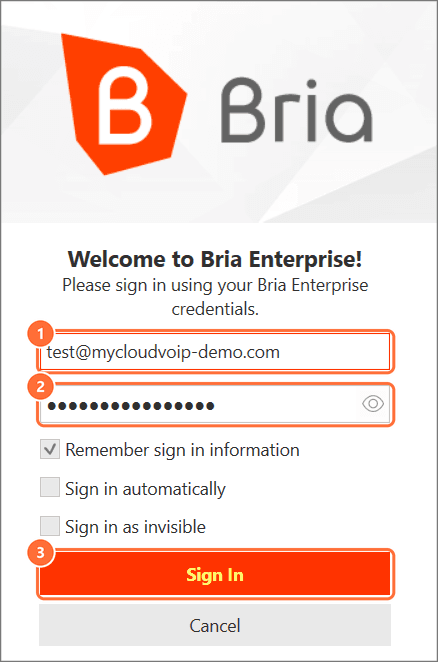
- Install Bria Enterprise from the links below, then open it.
- Username: enter the full username from the portal, including the domain (
name@your-domain). - Password: enter the password you copied when you turned Bria on.
- Click Sign In, then make a test call.
Each user can be signed in on up to 4 devices at once. The sign-in screen looks the same on Windows, Mac, iPhone and Android.
Download Bria Enterprise
Official CounterPath (Alianza) downloads.
Bria user guides
CounterPath's manuals for using Bria day to day.
Troubleshooting
| Symptom | Likely cause | Fix |
|---|---|---|
| User can't sign in: wrong username or password | Typing the extension number, or the SIP password, instead of the Bria login | Use the full username shown in the portal (name@your-domain). If the password's lost, use Reset password |
| User installed Bria but there's nowhere to enter a Simtex login | They installed Bria Solo, Bria Teams or Bria Mobile | Uninstall it and install Bria Enterprise from the links below |
| "Device limit reached" | The user is already signed in on 4 devices | Sign out on a device they no longer use. Older devices also drop off automatically after 24 hours |
| Bria signed out on every device | Someone reset the password, or the licence was turned off | Check the user's row in Softphones. Reset the password, or turn Bria on again |
| Mobile doesn't ring when the app is closed (Android) | Battery optimisation is stopping Bria in the background | Set Bria's battery use to Unrestricted in Android settings |
| Calls fail on Wi-Fi (iPhone) | Local Network permission is off | Settings > Privacy & Security > Local Network, then turn on Bria |
| Turn on is greyed out or no level has a free seat | Every seat at that level is in use | Use Change seats on the pool to add more, or turn off a user who no longer needs Bria |