Set up Bria Enterprise on Android
Bria Enterprise is included with selected Cloud PBX plans
PhoneEssentials, PhonePlus and PhoneMax include a free Bria Enterprise softphone, so every person can take calls on their computer or phone.
The 60-second version
- Install Bria Enterprise (from Google Play).
- Allow the permissions it asks for.
- Sign in with your full username, including the domain (
name@your-domain), and your Bria password. - Make a test call.
You'll need: An Android phone or tablet, and your Bria username and password.
Install Bria Enterprise specifically. Bria Solo, Bria Teams and Bria Mobile won't accept a Simtex login.
Set up Bria on Android
- You do this
Install from Google Play
Search Google Play for Bria Enterprise (by CounterPath) and install it.
- You do this
Allow microphone, phone and notifications
When Bria asks, allow the microphone, phone calls and notifications. Bria needs all three to ring and connect calls.
- You do this
Set battery use to Unrestricted
Open Settings > Apps > Bria Enterprise > Battery and choose Unrestricted. Otherwise Android may stop Bria in the background and you'll miss calls.
- You do this
Sign in
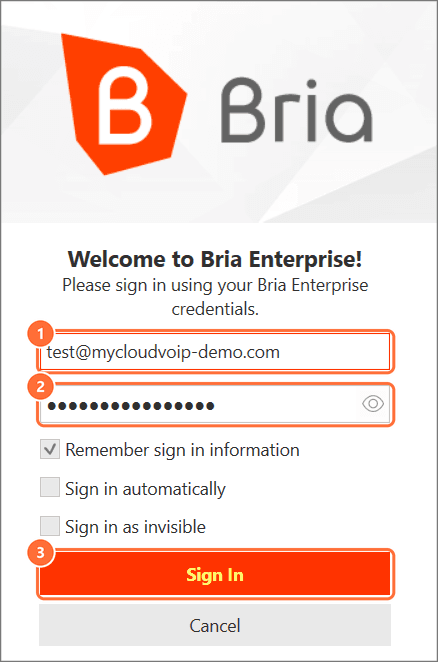
Enter your full username (name@your-domain) and your Bria password, then tap Sign In.
- You do this
Make a test call
Call your desk phone or another mobile. Then lock your phone and have someone call you to check it rings.
Troubleshooting
| Symptom | Likely cause | Fix |
|---|---|---|
| Doesn't ring when the app is closed | Battery optimisation stopped Bria | Settings > Apps > Bria Enterprise > Battery, choose Unrestricted, and check your phone's auto-start or sleeping apps settings |
| The other person can't hear you | Microphone permission was denied | Settings > Apps > Bria Enterprise > Permissions, allow Microphone |
| "Invalid username or password" | The domain is missing, or it's the SIP/extension password | Enter the full username, including @ and the domain, and the Bria password from your admin. Still failing? Ask your admin to reset it |
| Signed out on every device | Your password was reset, or your licence was turned off | Ask your admin for your new password, or to turn Bria back on |
| "Device limit reached" | You're signed in on 4 devices already | Sign out on a device you no longer use. Unused devices also drop off after 24 hours |
| Nowhere to enter a Simtex login | You installed Bria Solo, Bria Teams or Bria Mobile | Uninstall it and install Bria Enterprise |