Set up Bria Enterprise on Mac
Bria Enterprise is included with selected Cloud PBX plans
PhoneEssentials, PhonePlus and PhoneMax include a free Bria Enterprise softphone, so every person can take calls on their computer or phone.
The 60-second version
- Install Bria Enterprise (for Mac).
- Allow the permissions it asks for.
- Sign in with your full username, including the domain (
name@your-domain), and your Bria password. - Make a test call.
You'll need: A Mac running macOS 11 or later, a headset (recommended), and your Bria username and password.
Install Bria Enterprise specifically. Bria Solo, Bria Teams and Bria Mobile won't accept a Simtex login.
Set up Bria on Mac
- You do this
Download and install
Download the Mac installer (.dmg), open it and drag Bria Enterprise into your Applications folder.
- You do this
Allow microphone, camera and notifications
The first time you open Bria, macOS asks for access. Click Allow for the microphone (needed for calls), and for the camera and notifications if you want video and call alerts.
- You do this
Sign in
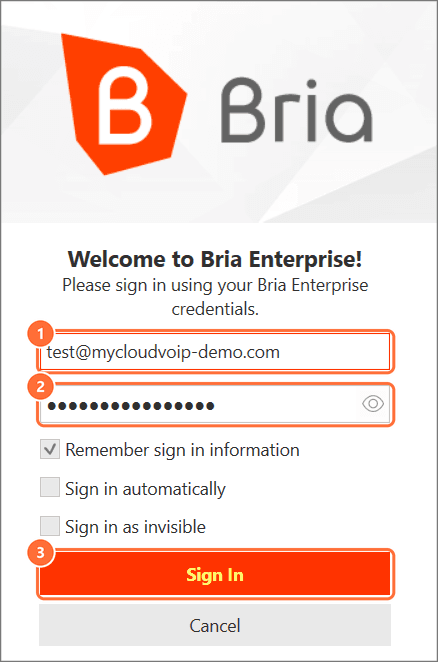
Enter your full username (name@your-domain) and your Bria password, then click Sign In.
- You do this
Make a test call
Type a number in the Enter name or number box and click the green call button. Try your mobile to check both directions.
Troubleshooting
| Symptom | Likely cause | Fix |
|---|---|---|
| The other person can't hear you | Bria doesn't have microphone access | System Settings > Privacy & Security > Microphone, turn on Bria Enterprise, then reopen Bria |
| No pop-up for incoming calls | Notifications are off for Bria | System Settings > Notifications > Bria Enterprise, allow notifications |
| "Invalid username or password" | The domain is missing, or it's the SIP/extension password | Enter the full username, including @ and the domain, and the Bria password from your admin. Still failing? Ask your admin to reset it |
| Signed out on every device | Your password was reset, or your licence was turned off | Ask your admin for your new password, or to turn Bria back on |
| "Device limit reached" | You're signed in on 4 devices already | Sign out on a device you no longer use. Unused devices also drop off after 24 hours |
| Nowhere to enter a Simtex login | You installed Bria Solo, Bria Teams or Bria Mobile | Uninstall it and install Bria Enterprise |