Queue Node
Places callers in a queue until an agent becomes available—ideal for larger teams or contact centres juggling many inbound calls.
This is a more advanced node, with a large quantity of configuration adjustments available.
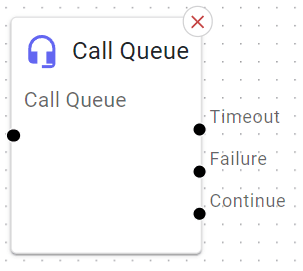
Basic Usage
Drag it in after a Menu node for example (“Press 2 for Support → Queue”).
Configure queue details: queue name, hold music, agent strategy, etc.
Wire the outcomes (e.g., “timeout” or “full”) to the next node.
Permanent vs Dynamic Agents
Permanent Agents are included in the queue by default when it's configured. They don't need to log in to start receiving calls, but they can log out if needed.
Dynamic Agents are not included in the queue by default. They must manually log in each time they want to receive calls from the queue.
Dynamic Agent Login/Logout
Dynamic agents manage their queue status by:
Using a designated key programmed on their phone, OR
Dialling:
*70*{their account}*{queue ID}
Example:
Agent account 2141234578 logging into queue 01
*70*2141234578*01
Queue IDs range from 01 through 99.
Use Permanent agents for dedicated queue staff who should receive calls by default. Use Dynamic agents for flexible staffing, such as agents who provide backup support or handle multiple responsibilities.
Understanding Your Queue Timing Settings
When a call arrives in a queue, your available team members are rung in rounds until someone answers or the caller runs out of time. Three settings control how this works — Member Ring Timeout, Retry, and Overall Queue Timeout.
The three timing levers
| Setting | What it controls | Example | Typical value |
|---|---|---|---|
| Member Ring Timeout | How long the phones ring in a single round before the system gives up on that round. Think of it as how long you’d let a phone ring before deciding nobody’s going to pick up. | 20s — rings the team for 20 seconds; if no one answers, that round ends. | 15–30s suits most teams. |
| Retry | How long the system pauses after an unanswered round before ringing again — a short breather between rounds. | 5s — waits 5 seconds after a round ends, then rings the team again. | Keep it low; 5 is a good default (0 starts the next round almost immediately). |
| Overall Queue Timeout | The total time a caller will wait in the queue before the system stops trying — the ceiling on the whole experience. | 120s — a caller still unanswered after 2 minutes leaves the queue and follows your overflow plan. | Usually a few minutes. The most important setting for caller experience. |
How the three work together
The first two settings repeat in a loop — ring for the Member Ring Timeout, pause for the Retry, ring again — while the Overall Queue Timeout counts down the whole time in the background. When that overall limit is reached, the caller leaves the queue no matter where a ring round was up to.
Here is how it plays out for an unanswered caller with Member Ring Timeout = 20s, Retry = 5s and Overall Queue Timeout = 120s. Each ring-and-pause round takes about 25 seconds, and the caller goes through as many rounds as fit inside the 2-minute limit:
The 120-second journey
Member Ring Timeout 20s · Retry 5s · Overall Queue Timeout 120s
- 1We handle this
Round 1 · 0–25s
Phones ring for 20 seconds. No one answers, so the system takes a 5-second retry pause. 25 seconds elapsed.
- 2We handle this
Round 2 · 25–50s
Ring for 20 seconds, then pause 5 seconds. 50 seconds elapsed.
- 3We handle this
Round 3 · 50–75s
Ring for 20 seconds, then pause 5 seconds. 75 seconds elapsed.
- 4We handle this
Round 4 · 75–100s
Ring for 20 seconds, then pause 5 seconds. 100 seconds elapsed.
- 5We handle this
120s reached · caller moved on
The next ring round begins, but the 120-second Overall Queue Timeout is reached before it finishes. The caller leaves the queue and follows your overflow plan — voicemail, another team, or wherever you’ve set the call to go next.
Tuning tips
- If callers say the phone “rings forever” before someone answers, shorten the Member Ring Timeout.
- If callers are being sent to voicemail too soon, increase the Overall Queue Timeout.
- Adjust in small steps (around 5 seconds) to find the right balance.
Detailed Parameters
Node Name

What: A label to identify this queue internally (e.g. “Support Queue”).
Tip: If you have multiple queues, keep names consistent with department usage.
Permanent Agents

What: Dropdown to select which extensions are enabled as Permanent Agents.
Queue Strategy
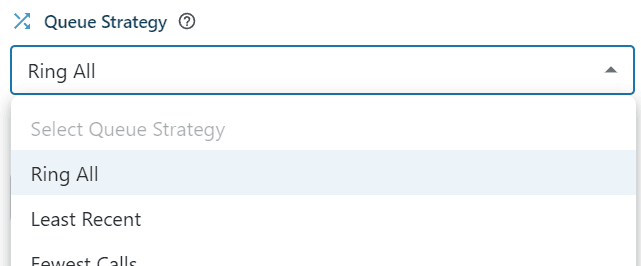
Ring All: Rings all free agents simultaneously.
Least Recent: The agent who’s been free the longest gets the call first.
Fewest Calls: The agent who has taken the least quantity of calls.
Random: Selects free agents at random.
Round Robin Memory: Rings agents in turn, distributing calls evenly.
Tip: Choose a strategy that best suits your team’s fairness or performance goals.
Member Ring Timeout (seconds)
What: How long the phones ring in a single round before the system gives up on that round and moves on. See Understanding Your Queue Timing Settings above for how this works with Retry and the Overall Queue Timeout.
Tip: Somewhere between 15 and 30 seconds suits most teams.
Timeout (seconds)

What: The total time a caller waits in the queue before the system stops trying — also called the Overall Queue Timeout. See Understanding Your Queue Timing Settings above.
Tip: Usually set for a few minutes, unless your callers are happy waiting!
Retry (seconds)

What: The pause between ring rounds — how long the queue waits after an unanswered round before ringing your agents again. Keeping it low (around 5 seconds) is a good default. See Understanding Your Queue Timing Settings above.
Hold Music
What: The music (or announcements) callers hear while waiting in the queue.
Tip: Some businesses rotate music to keep it fresh.
Periodic Announcements (optional)
What: An additional message which can be played every so many seconds.
Tip: Good for letting callers know about alternative support channels (like your website).
Periodic Announcement Frequency (seconds)

What: How many seconds the system waits between each playback of the Periodic Announcement while a caller is waiting. A longer gap feels calmer for the caller; a shorter gap repeats your message more often.
Hint: Don’t play this too often, keep it to 300+ seconds frequency.
Periodic Announcement Start Delay (seconds)

What: How many seconds to wait after a caller enters the queue before the Periodic Announcement plays for the first time. Set this so callers hear a little hold music first, rather than a message the instant they arrive.
Weight

What: If you have multiple queues, a higher weight queue can jump ahead in agent selection.
Tip: If you want VIP queues answered first, give them higher weight.
Wrap-Up Time

What: A buffer time after an agent finishes a call before they get the next.
Tip: Helps agents make notes. If your calls need a lot of post-call work, increase wrap-up time.
Announce Position (optional)

What: A message that tells the caller their current position in line (e.g., “You are caller number 3…”).
Tip: Reassuring, but can annoy callers if it’s repeated too often.
Ring In Use

What: When enabled, queue calls ring an agent even if they are on another call. When disabled, busy agents are skipped. Only enable if agents have Call Waiting and can juggle multiple calls.
Join if Empty

What: When enabled, callers can enter the queue even if no agents are logged in. This has a risk that callers may sit in an empty queue with no possibility of the call being answered.
Leave When Empty

What: When enabled, waiting callers are removed from a queue when no agents are logged in. Calls will then continue to the next IVR node.
Media Bypass

What: Enabled by default, this allows media/audio from calls to take the shortest path from your phone/device through our network. In some cases, turning this off will alleviate strange media-related issues (one-way audio for example).
Outcomes
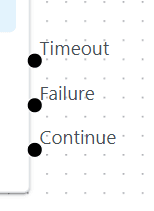
Timeout
What: If timeout time is reached, send callers to another node (e.g., “Voicemail” or “Overflow ring group”).
Tip: If you have an “Overflow queue,” connect it here.
Failure
What: If the queue is already at capacity (Max Callers reached), or no agents are logged-in (leave when empty-enabled), callers are rerouted here.
Tip: Often leads to a short apology prompt then “Voicemail.”
Continue
What: If your agent flags the call is to ‘continue’, ie for an after-call survey.
Example Use Case
Full-Blown Support Centre: Agents log into the queue. Callers hear hold music, get periodic updates on their position, and eventually connect to the next free agent. If it’s too busy, calls overflow to a voicemail or backup call centre.